
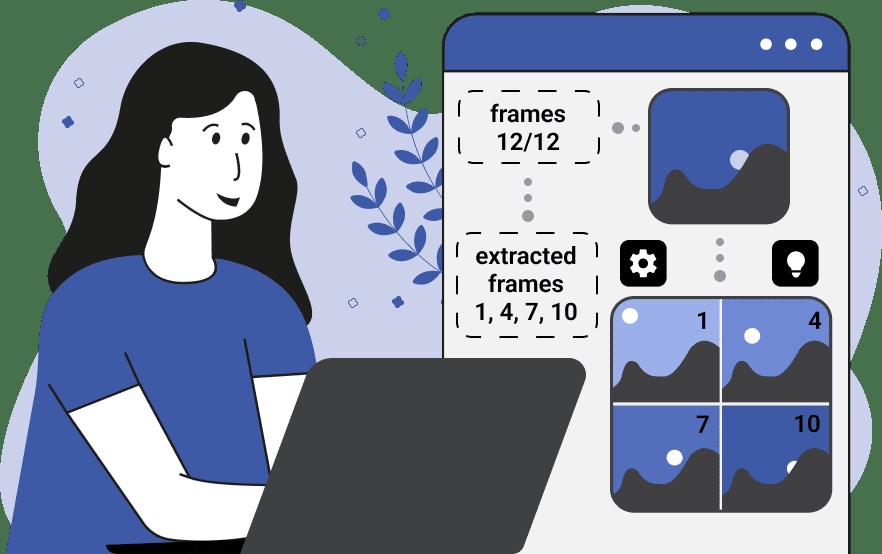
You can extract frames from a video in C# using the AForge.NET, OpenCV (Emgu.CV), or FFmpeg libraries. Below are different methods based on these libraries:
Method 1: Using OpenCV (Emgu.CV)
Emgu.CV is a .NET wrapper for OpenCV and is one of the easiest ways to process videos and extract frames.
Steps:
- Install the Emgu.CV NuGet package:
Install-Package Emgu.CV - Use the following C# code to extract frames from a video:
C# Code Using Emgu.CV
using System;
using System.Drawing;
using Emgu.CV;
using Emgu.CV.CvEnum;
using Emgu.CV.Structure;
class Program
{
    static void Main()
    {
        string videoPath = "sample.mp4";  // Path to video file
        string outputFolder = "Frames";   // Output folder for extracted frames

        if (!System.IO.Directory.Exists(outputFolder))
            System.IO.Directory.CreateDirectory(outputFolder);

        using (var capture = new VideoCapture(videoPath))
        {
            int frameIndex = 0;
            Mat frame = new Mat();

            while (capture.Grab())
            {
                capture.Retrieve(frame); // Get frame

                if (!frame.IsEmpty)
                {
                    string framePath = $"{outputFolder}/frame_{frameIndex}.jpg";
                    frame.Bitmap.Save(framePath, System.Drawing.Imaging.ImageFormat.Jpeg);
                    Console.WriteLine($"Saved: {framePath}");
                    frameIndex++;
                }
            }
        }

        Console.WriteLine("Frames extracted successfully.");
    }
}
How It Works?
- Opens the video file.
- Loops through each frame and saves it as an image.
- Saves frames in the specified folder.
Method 2: Using FFmpeg (Fast & Efficient)
If you want a simple approach without using C# libraries, you can use FFmpeg.
Steps:
- Download and Install FFmpeg from ffmpeg.org.
- Run FFmpeg Command from C#:
C# Code Using FFmpeg
using System;
using System.Diagnostics;

class Program
{
    static void Main()
    {
        string videoPath = "sample.mp4";
        string outputFolder = "Frames";

        if (!System.IO.Directory.Exists(outputFolder))
            System.IO.Directory.CreateDirectory(outputFolder);

        string ffmpegCmd = $"-i \"{videoPath}\" \"{outputFolder}/frame_%04d.jpg\"";

        ProcessStartInfo processInfo = new ProcessStartInfo
        {
            FileName = "ffmpeg",
            Arguments = ffmpegCmd,
            RedirectStandardOutput = true,
            UseShellExecute = false,
            CreateNoWindow = true
        };

        Process process = new Process { StartInfo = processInfo };
        process.Start();
        process.WaitForExit();

        Console.WriteLine("Frames extracted successfully.");
    }
}
How It Works?
- Calls
FFmpegfrom C# to extract frames. - Saves frames as
frame_0001.jpg,frame_0002.jpg, etc.
Method 3: Using AForge.NET (Basic)
AForge.NET is another option but is slower than OpenCV.
Steps:
- Install AForge.Video.FFMPEG via NuGet:
Install-Package AForge.Video.FFMPEG - Use the following C# code:
C# Code Using AForge
using System;
using System.Drawing;
using AForge.Video.FFMPEG;

class Program
{
    static void Main()
    {
        string videoPath = "sample.mp4";
        string outputFolder = "Frames";

        if (!System.IO.Directory.Exists(outputFolder))
            System.IO.Directory.CreateDirectory(outputFolder);

        VideoFileReader reader = new VideoFileReader();
        reader.Open(videoPath);

        for (int i = 0; i < reader.FrameCount; i++)
        {
            Bitmap frame = reader.ReadVideoFrame();
            if (frame != null)
            {
                string framePath = $"{outputFolder}/frame_{i}.jpg";
                frame.Save(framePath, System.Drawing.Imaging.ImageFormat.Jpeg);
                Console.WriteLine($"Saved: {framePath}");
                frame.Dispose();
            }
        }

        reader.Close();
        Console.WriteLine("Frames extracted successfully.");
    }
}
Which Method Should You Use?
| Method | Pros | Cons |
|---|---|---|
| OpenCV (Emgu.CV) | Fast, powerful, real-time | Requires OpenCV |
| FFmpeg | Very fast, no extra coding needed | Requires FFmpeg installed |
| AForge.NET | Simple, easy to use | Slower than OpenCV |
Best Choice?
✅ Use Emgu.CV for real-time processing
✅ Use FFmpeg for the fastest frame extraction
✅ Use AForge.NET if you need a lightweight solution
Let me know if you need further details! 🚀


Leave Comment